Work on multiple invoices simultaneously with tab management.
Creating New Tabs
- Click the + button in the tab bar
- A new tab opens with empty invoice
- Start adding items to the new tab
Switching Between Tabs
Click any tab to switch. Your work is automatically saved when you switch tabs — no data loss, even with unsaved invoices.
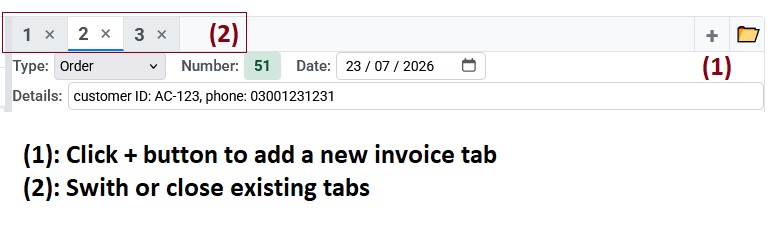
Multi-tab invoicing in SheetERP POS Invoice
What Each Tab Remembers
- Header: Type, date, details, number
- Line items: All items with quantities and discounts
- Totals: Subtotals, discounts, final amount
- Search state: Filters and list panel selections
- Discount: Global discount setting
Closing Tabs
- Click × on the tab
- If the tab has data, you’ll see a warning
- Confirm to close and discard data
- Cannot close the last remaining tab
⚠️ Warning: Closing a tab permanently discards its data. Save the invoice before closing if you need it later.
Next: Learn about Customizing Your Workflow.