Install and configure SheetERP POS Invoice in minutes
System Requirements
- Google Account: Any Google account (free or Workspace)
- Browser: Chrome, Firefox, Edge (latest versions recommended)
- Screen Size: Minimum 14″ laptop screen recommended
- Resolution: 1920×1080 (1080p) recommended for optimal experience
- Google Sheets: A spreadsheet with your product data (first row = headers)
Step 1: Install from Google Workspace Marketplace
- Visit the Google Workspace Marketplace listing
- Click the “Install” button
- Review the permissions requested
- Click “Continue” to grant access
- Wait for installation to complete
Google Workspace Marketplace listing with Install button
💡 Permissions Explained: The add-on requests access to your active spreadsheet (to read product data and save transactions), your email (for license verification), and external requests (to verify your license with our server).
Step 2: Open Your Product Spreadsheet
Open the Google Sheet that contains your product data. If you don’t have one yet, create a new sheet with this structure:
Required Structure:
- Row 1: Column headers (e.g., “Code”, “Description”, “Price”)
- Row 2 onwards: Your product data
- One column: Must contain prices (auto-detected)
- Recommended: A unique product code column
Example spreadsheet with product data
Step 3: Access the Add-on Menu
- In your Google Sheet, go to Extensions → SheetERP
- You’ll see menu items: Open POS, Default Settings, Invoice Settings, License Settings
- If you don’t see the menu, refresh the page
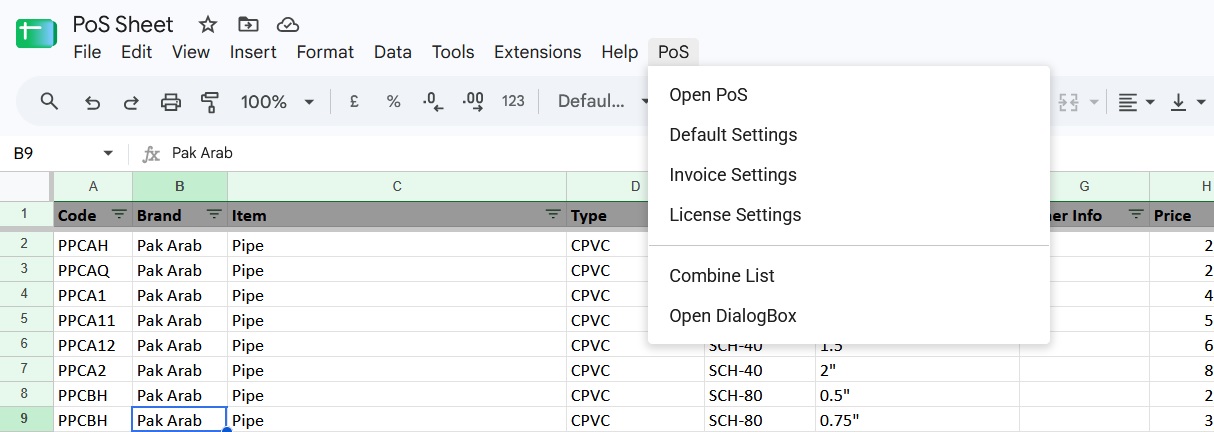
Extensions menu with SheetERP options
Step 4: Configure Default Settings
- Go to Extensions → SheetERP → Default Settings
- Sheet Selection: Choose the sheet containing your product data
- Price Column: Verify the auto-detected price column (change if wrong)
- Decimal Separator: Confirm it matches your data (comma or dot)
- Column Configuration: Set which columns are visible, searchable, listable, or included in descriptions
- Discount: Enable if you want global discount feature
- Search Operators: Customize AND, OR, SEP, ESC characters (optional)
- Click Save
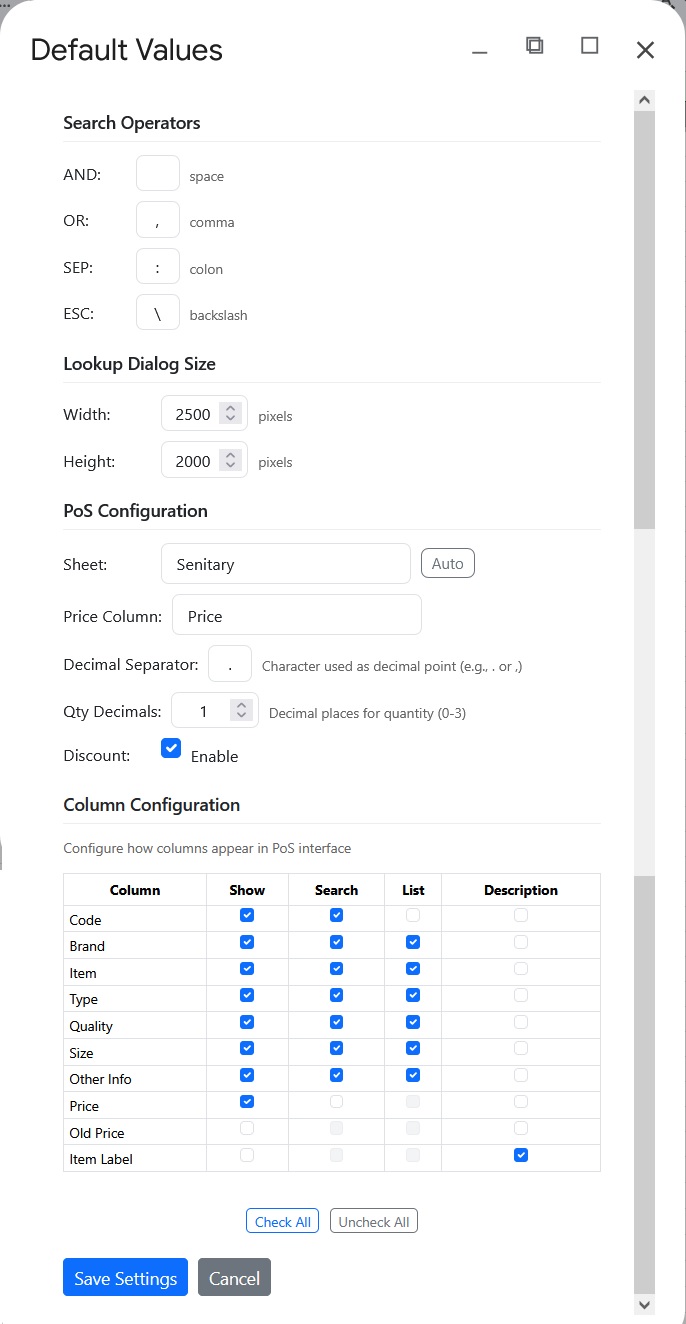
Default Settings configuration dialog
Step 5: Configure Invoice Settings
- Go to Extensions → SheetERP → Invoice Settings
- Saving Sheet: Select the sheet where transactions will be saved
- Dump Sheet: Select the sheet for “Prepare Print” feature (optional)
- HTML Report Templates: Add your first template (or use default)
- Click Save
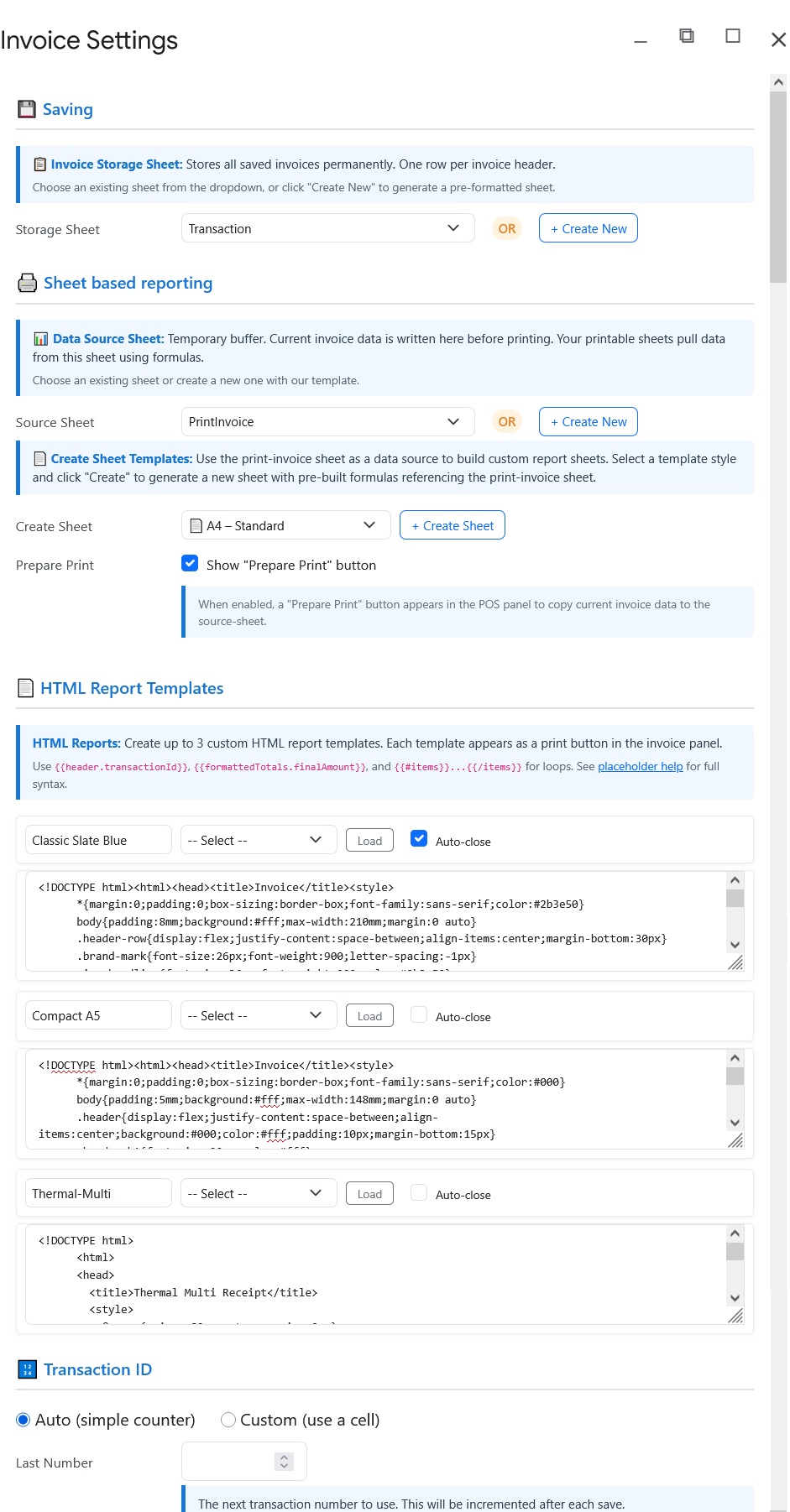
Invoice Settings configuration dialog
Step 6: Verify Installation
Let’s test that everything works:
- Go to Extensions → SheetERP → Open POS
- The POS dialog opens with your product data loaded
- Search for a product in the left panel
- Click a product to add it to the invoice
- Click Save to save the transaction
- Click Print to test printing
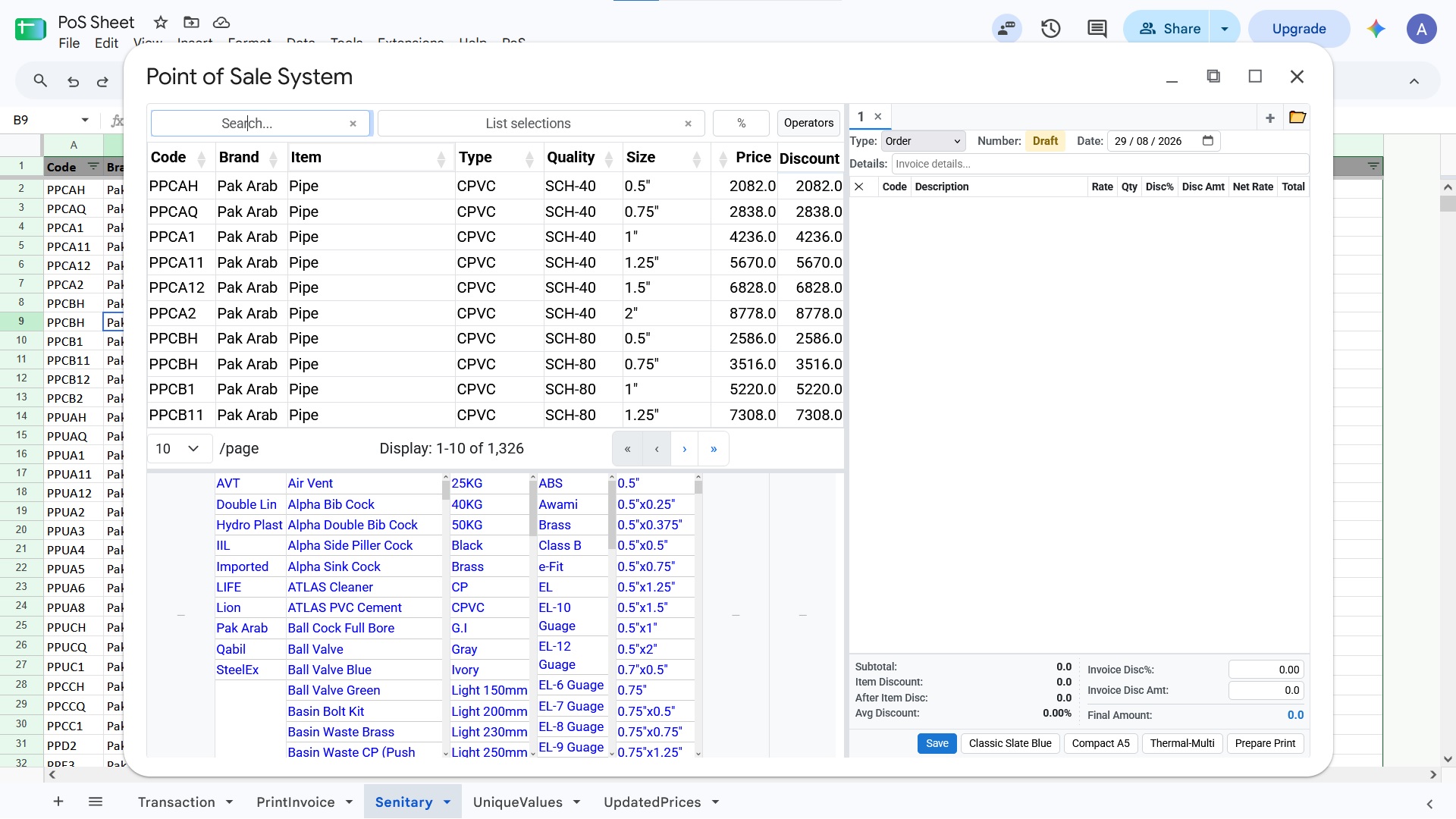
POS dialog with product data loaded
Installation Complete! 🎉
Ready to start using SheetERP POS Invoice? Learn how to search, build invoices, and more.
View How to Use Guide →